DS4Windows user guide
Documentation index · Install and update · Compatibility · Troubleshooting
DS4Windows reads a physical controller and presents the virtual controller selected by your profile. Available settings depend on the controller and connection.
Overview
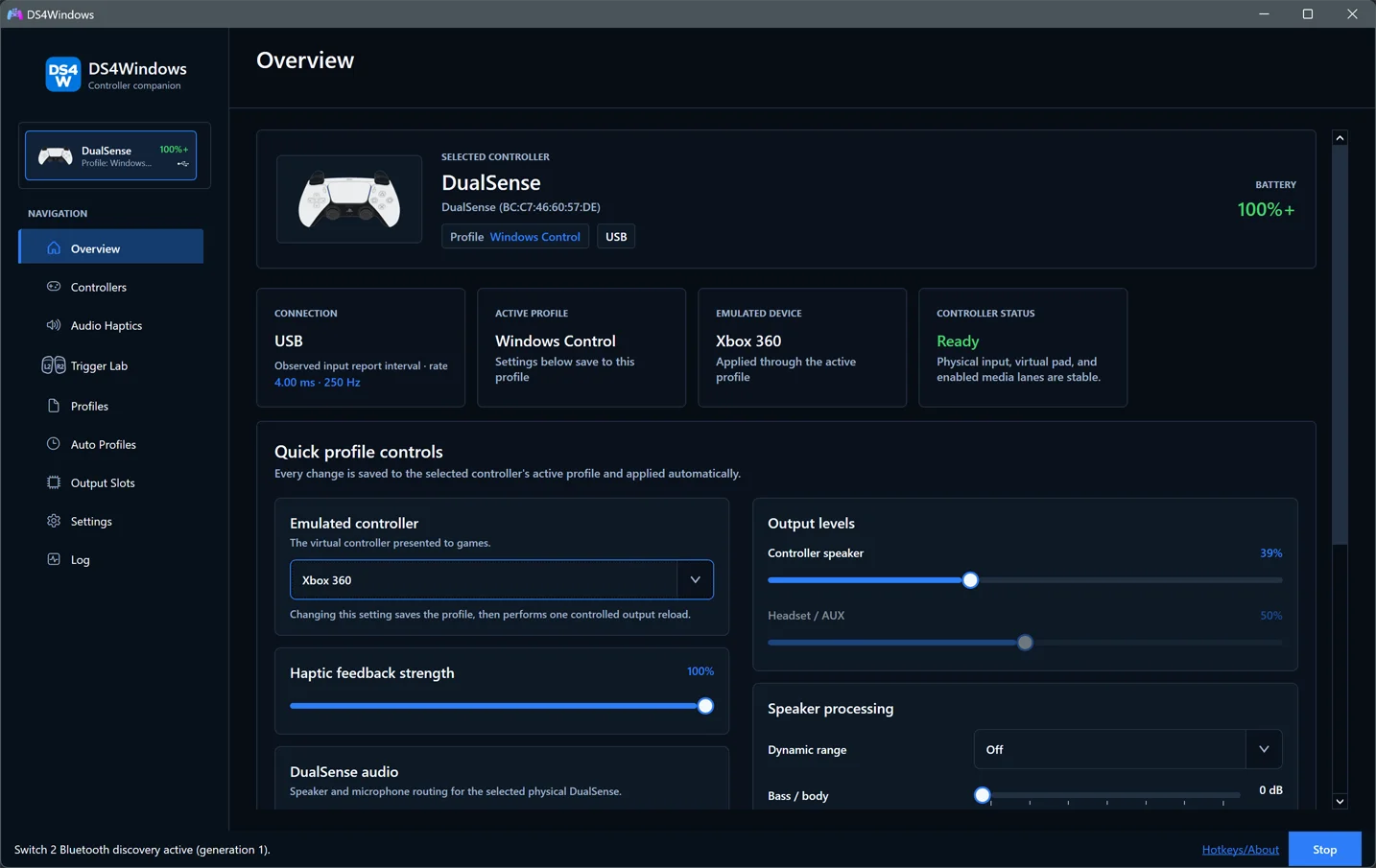
Start here for a summary of your connected controller, active profile and backend status.
Controllers
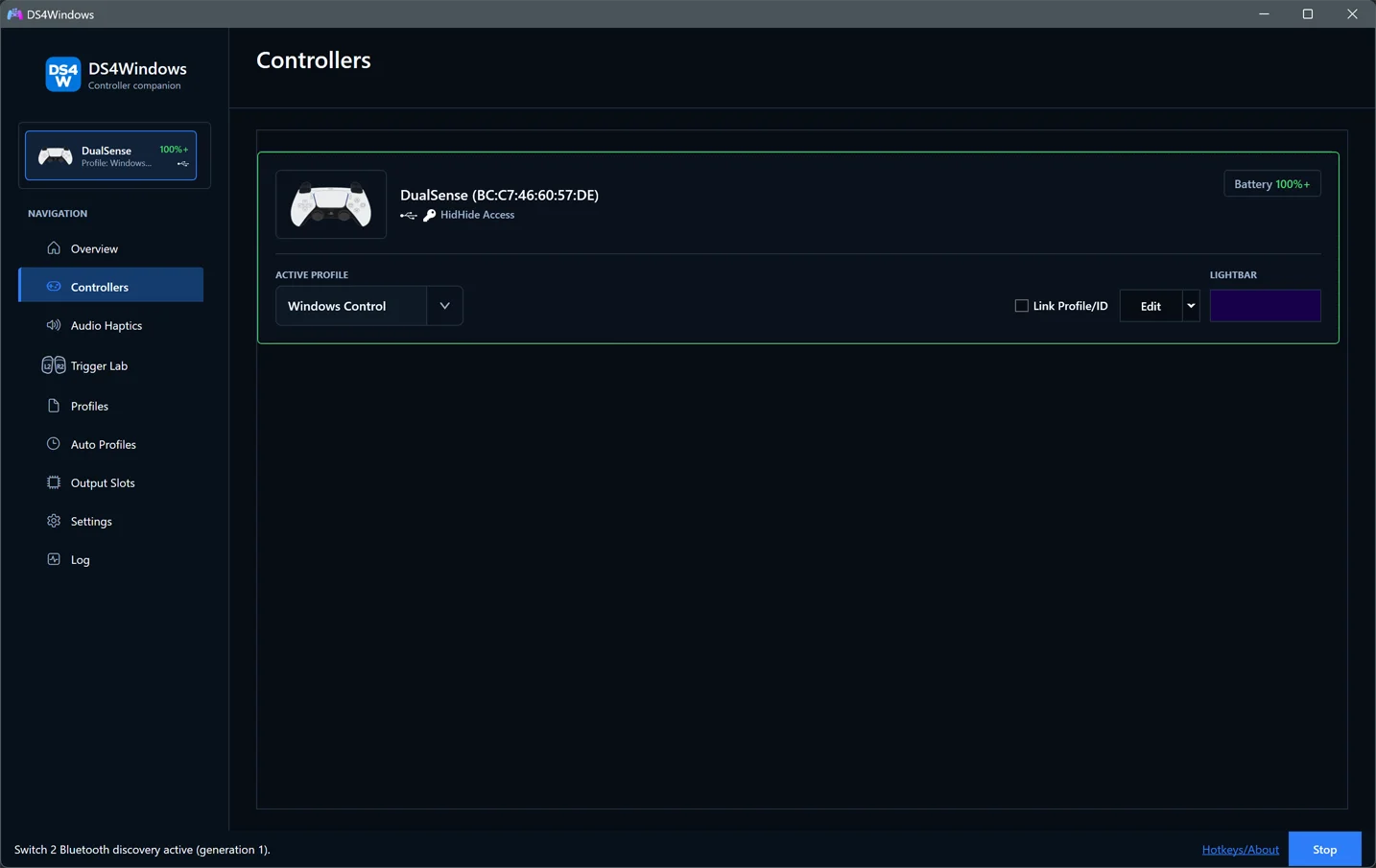
The Controllers page shows connected devices, battery, connection and selected profile. Use the profile selector to choose a saved profile, and Edit to change it. Link a profile to the controller ID when you want that device to reuse it. Temporary changes and wireless disconnect controls apply to the selected device.
For Joy-Cons, use Link/Unlink or the automatic pairing option. A pair needs a left and right controller of the same generation. Choose upright or sideways orientation for a single Joy-Con. Switch 2 Bluetooth discovery and association are available in Settings → Controllers; see Nintendo setup and options.
Profiles
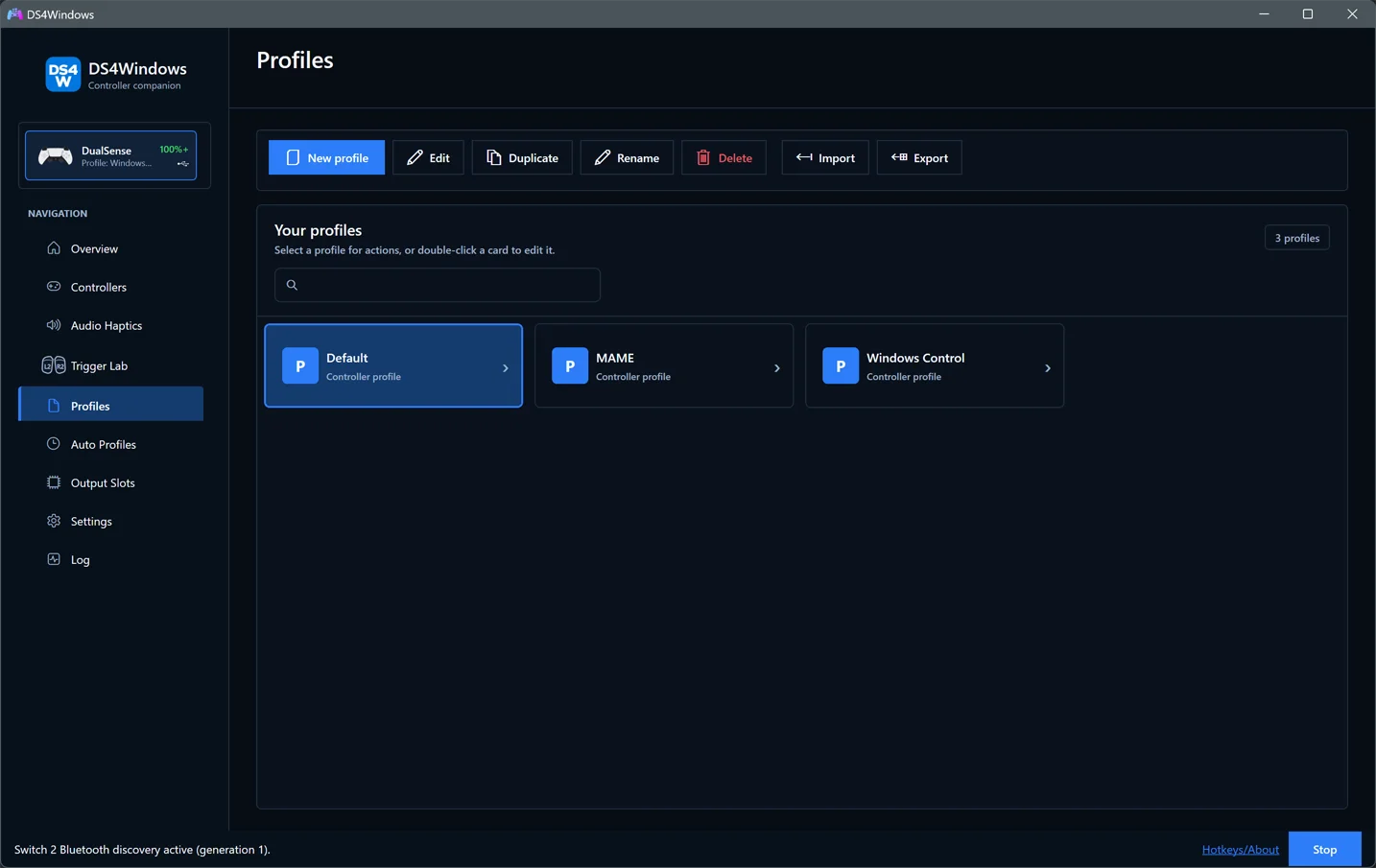
Create a profile from a preset, then choose the output device the game expects. Xbox 360 is a useful starting point for XInput games. Choose DualShock 4 or DualSense when the game supports that controller's features. Restart the game after changing output type if it does not detect the new virtual controller.
You can rename, duplicate, import and export profiles from the Profiles page.
Settings and profiles location
The Settings & profiles card shows the active profiles folder and whether it is writable. It starts collapsed to save space; click its header to expand it. Your expanded/collapsed choice is remembered across restarts. Read-only folders and pending settings changes automatically expand to expose the warning or next steps without replacing your saved preference.
Open profiles folder opens that exact folder. Back up all saves a complete settings ZIP, including profile assignments, actions, output slots, Nintendo pairing data and imported battery-alert sounds. Executables, drivers and logs are excluded. Restore backup validates a ZIP created here and schedules a restore for the next start, keeping a verified backup of the current destination first.
Choose AppData — recommended for per-user storage in
%APPDATA%\DS4Windows, or Program folder beside the running executable.
New registered installations default to AppData. Existing locations remain
selected until you choose to change them. Program Files commonly requires
administrator access to save; the page checks actual folder access and explains
when it is read-only. Profiles can still be viewed and exported there.
Migrate to AppData is offered for installed copies using settings in their program folder. Migration is optional. Close the editor and save or discard pending edits before proceeding. Choose whether to copy your current saved settings or use the destination's existing settings. Replacing existing settings requires confirmation: the complete set is backed up, then replaced rather than merged. Your source folder remains intact. Fully quit DS4Windows and reopen it to apply the change; Cancel pending change cancels it before the next start. The remembered location takes precedence over old files left beside the EXE.
Copies are staged and verified before publication. A journal supports rollback
after an interrupted copy. If recovery finds unexpected changes, DS4Windows
preserves them and reports the backup location instead of overwriting them.
Automatic destination backups are kept beneath
%LOCALAPPDATA%\DS4Windows\Settings locations\<installation-id>\<operation-id>\backup.
Keep a separate Back up all ZIP for convenient long-term recovery.
Sort profiles by name or last modified time. Cards show their output type, modification time and whether a connected controller is using them. Importing a same-named profile asks before replacing it.
Stored updates and cleanup
Open Settings > Updates & tools > Updates > Update storage to see the size of recognised stored update files and the space reclaimable under your selected retention policy. The default keeps one previous version of each component in addition to current files. Choose none, a custom count (0–100), or Keep all. Disable Automatically clean up after updating to manage cleanup manually. Preferences are per user and application folder and survive settings-location changes.
Clean up now lists the exact files and estimated space before confirmation. It applies the selected retention policy; choosing none still preserves current files. View stored files opens the folders containing recognised packages. Refresh scans again. Locked, changed or inaccessible files are skipped and reported rather than blocking the app; an unwritable installed folder may need an administrator for manual cleanup.
Automatic cleanup runs in the background after the controller service starts
and VIIPER/USB/IP readiness checks pass. Failed startup/repair does not trigger
pruning. It covers recognised versioned DS4Windows/updater downloads and old
VIIPER/USB/IP support packages in the application folder, its Updates and
extras folders, and %LOCALAPPDATA%\DS4Windows\Updates. Files belonging to
the current package, current/newer versions, live executables, installed drivers,
profiles, settings, backups, transaction folders and unknown/nested content are
preserved. Unrecognised files are excluded from the displayed totals and are
not removed; this is not a general disk cleaner. Keeping a download does not
provide an automatic downgrade or guarantee that an older driver can be restored.
If saving fails, the editor stays open and the last valid profile file is kept. Check Log for the file error, resolve permissions or free space, and retry. A rename collision leaves both existing profiles unchanged; the Rename dialog stays open so you can choose another name. If a save-based rename cannot remove the original file, both complete copies are kept; check Log before removing any copy yourself.
Overview quick settings apply live but still need a successful profile save. If a write fails, Overview shows Retry unsaved changes and Discard pending saves. Retry writes the captured changes to their original profile, even if you have selected another profile. It refuses to overwrite a profile that has since been edited or deleted. Discard cancels the pending saves without reverting live settings. Pending saves are held only for this app session; resolve them before closing DS4Windows. Before editing or renaming a profile with pending Overview saves, retry or discard those saves first.
Back up your settings before deleting profiles or importing replacements.
Edit a profile
The Profile Editor guide explains each page and common setup tasks. Use Nintendo Options and Controller audio for hardware-specific features.
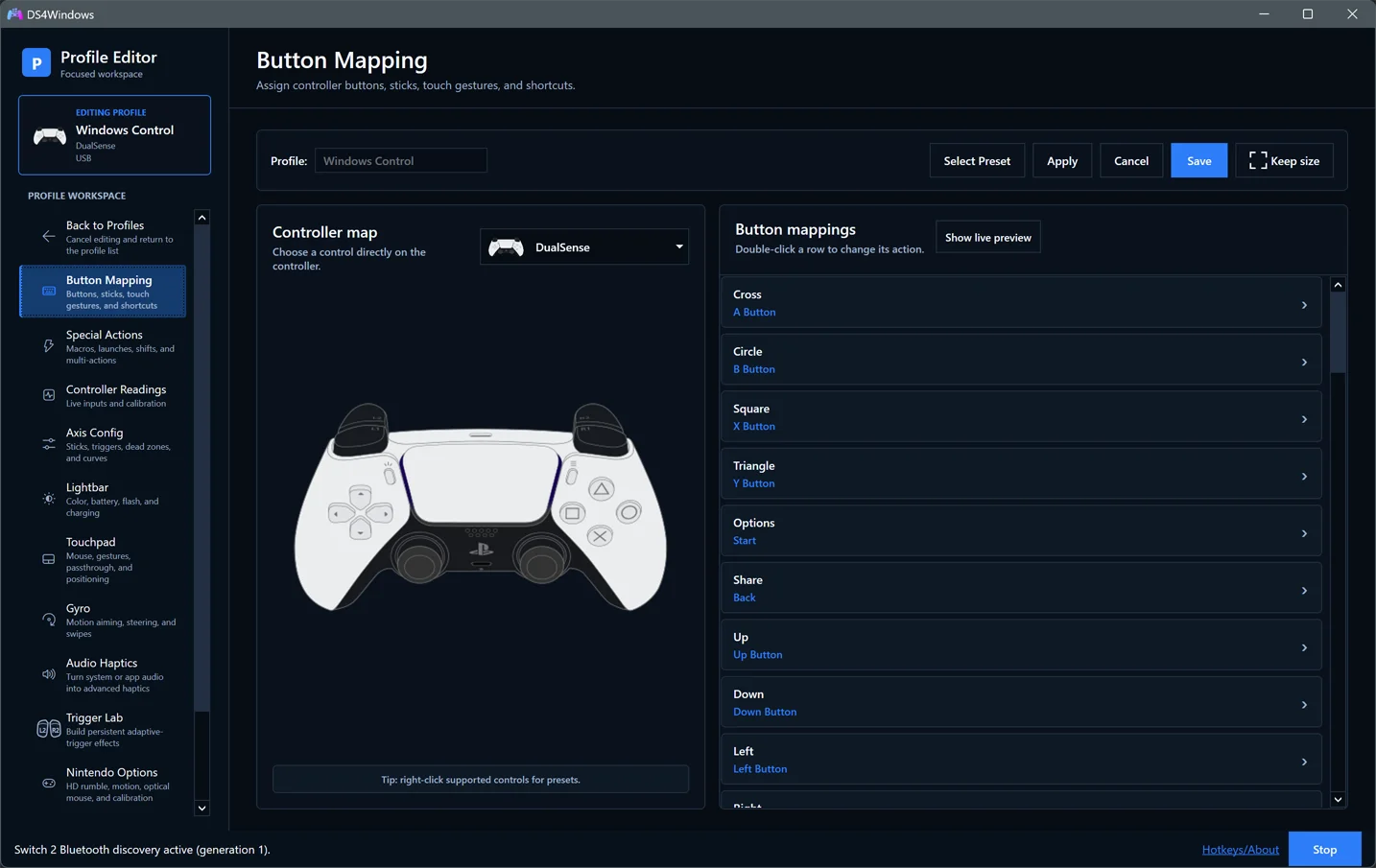
| Page | Purpose |
|---|---|
| Button Mapping | Map buttons, sticks, triggers and gestures to controller, keyboard, mouse or macro actions |
| Special Actions | Configure combinations, macros, launches and profile shifts |
| Controller Readings | Inspect live stick, trigger and motion input |
| Axis Config | Adjust dead zones, curves, sensitivity and flick stick |
| Lightbar | Set colour, battery indicators, flashing and passthrough |
| Touchpad | Choose mouse, gestures, controls, absolute positioning or passthrough |
| Gyro | Configure motion aiming, mouse output, steering or passthrough |
| Audio Haptics | Use system or application audio as a haptics source |
| Trigger Lab | Configure persistent adaptive-trigger effects |
| Nintendo Options | Configure supported rumble, motion, calibration and Joy-Con 2 optical-mouse features |
| Advanced | Use Output, Feedback, Audio, Input and Connection categories to configure output, rumble, controller audio, mouse mappings, latency and compatibility options. Hardware-specific controls follow the selected physical controller. |
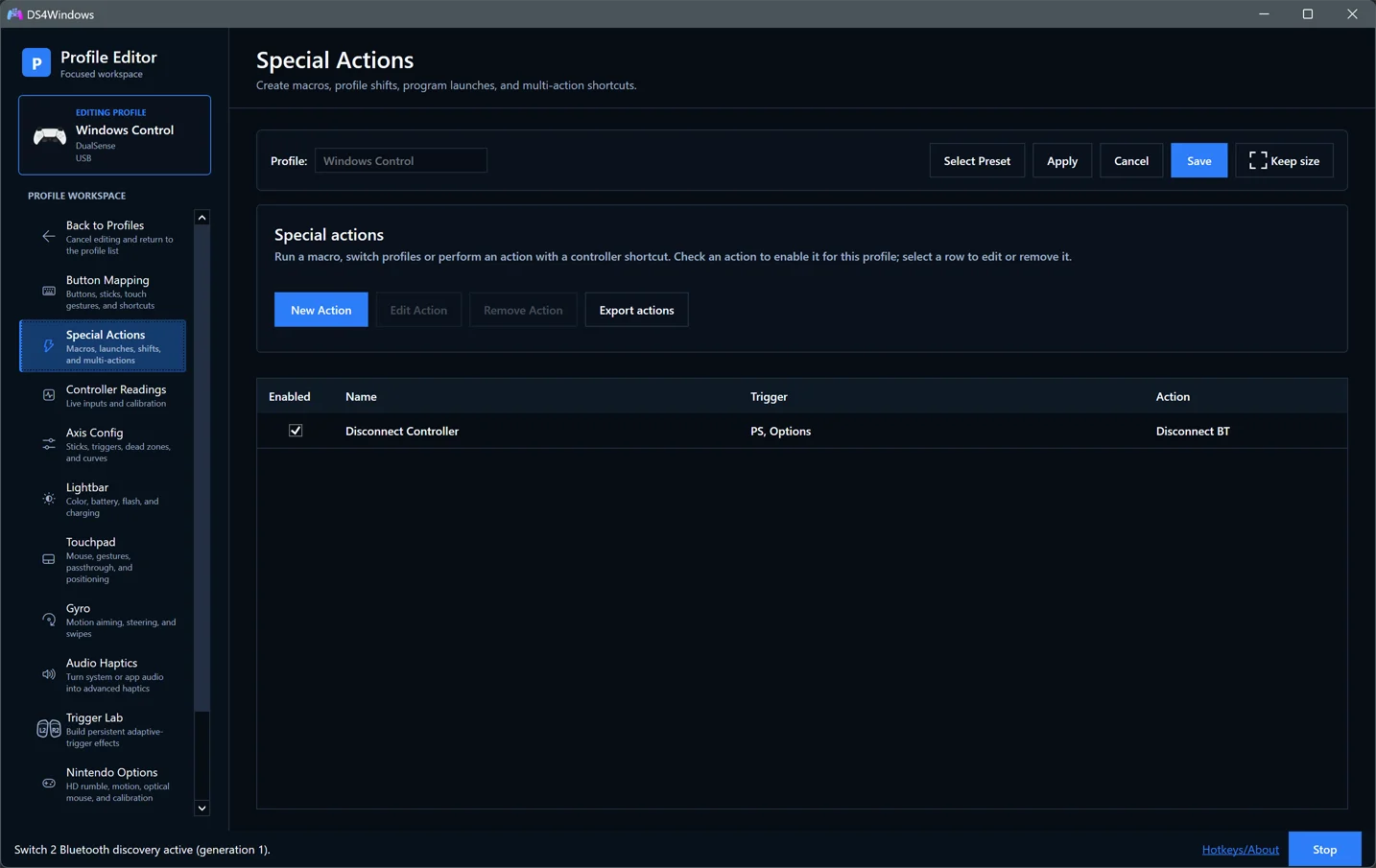
Special Actions uses an Enabled checkbox for each action. Check it to use that action in this profile. Select a row before choosing Edit Action or Remove Action; New Action creates a shortcut and Export actions saves an export. Long names and triggers wrap, and narrow windows allow horizontal scrolling. Trigger Lab protection notices remain visible above the list.
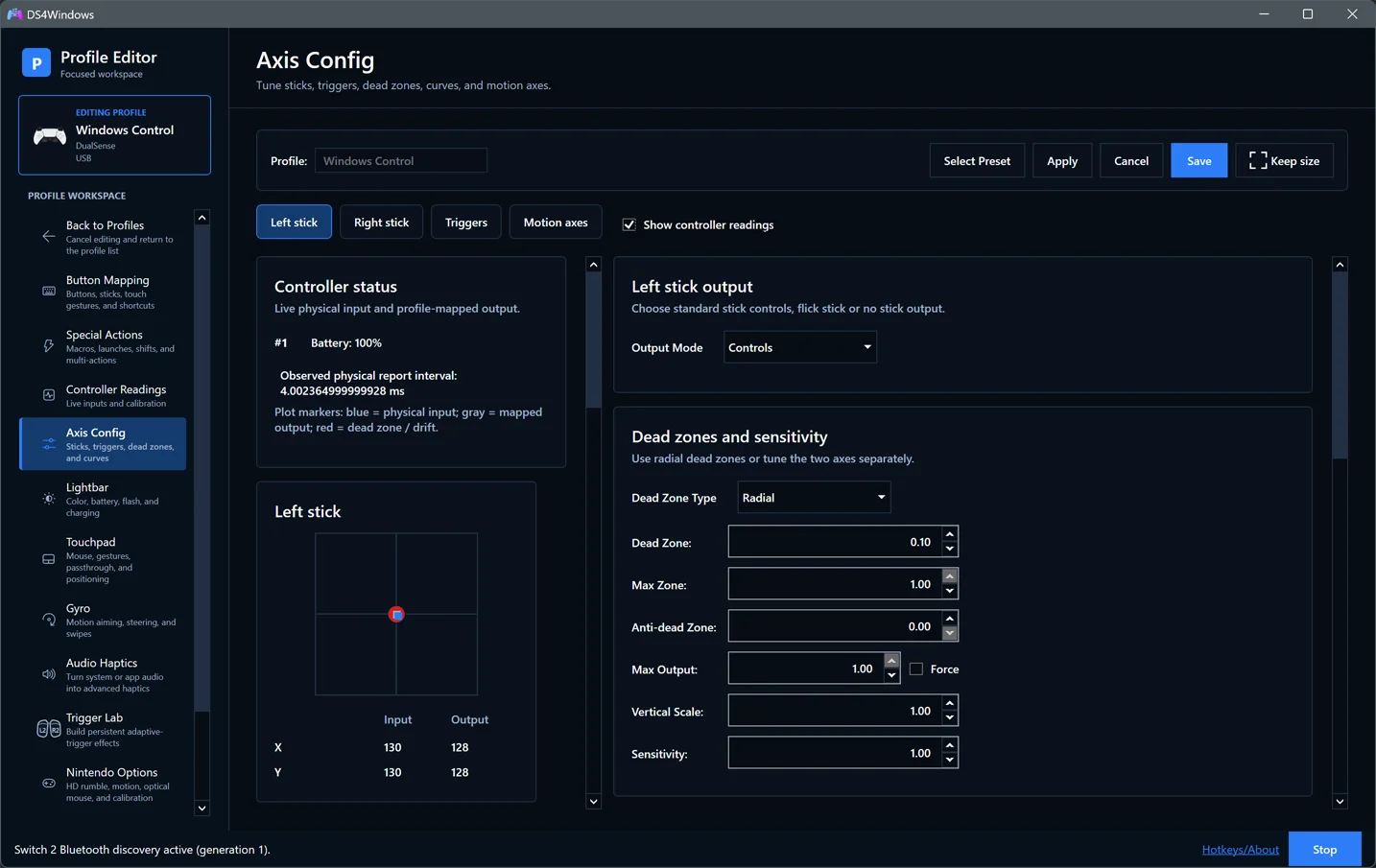
Axis Config separates Left stick, Right stick, Triggers and Motion axes. Stick pages group dead zones, response shaping, outer-stick actions and calibration, with optional delta acceleration and flick-stick settings. Lightbar groups profile colors, battery alerts, charging and rainbow brightness. Touchpad and Gyro keep their output-mode selectors, with focused cards for the selected mode, activation, smoothing and calibration. Changing sections preserves unsaved edits; use Apply or Save to write them as usual.
Controller Readings groups live status, sticks, triggers, motion sensors and the first touchpad contact into cards that wrap to the available width. Input is the physical reading; Output is the profile-mapped value. Blue plot markers show physical input, gray markers show mapped output, and red areas show dead zones or drift. The observed physical report interval is not end-to-end latency. Sensor bars are read-only; configure behavior on the other editor pages.
The controller diagram follows the selected controller layout.
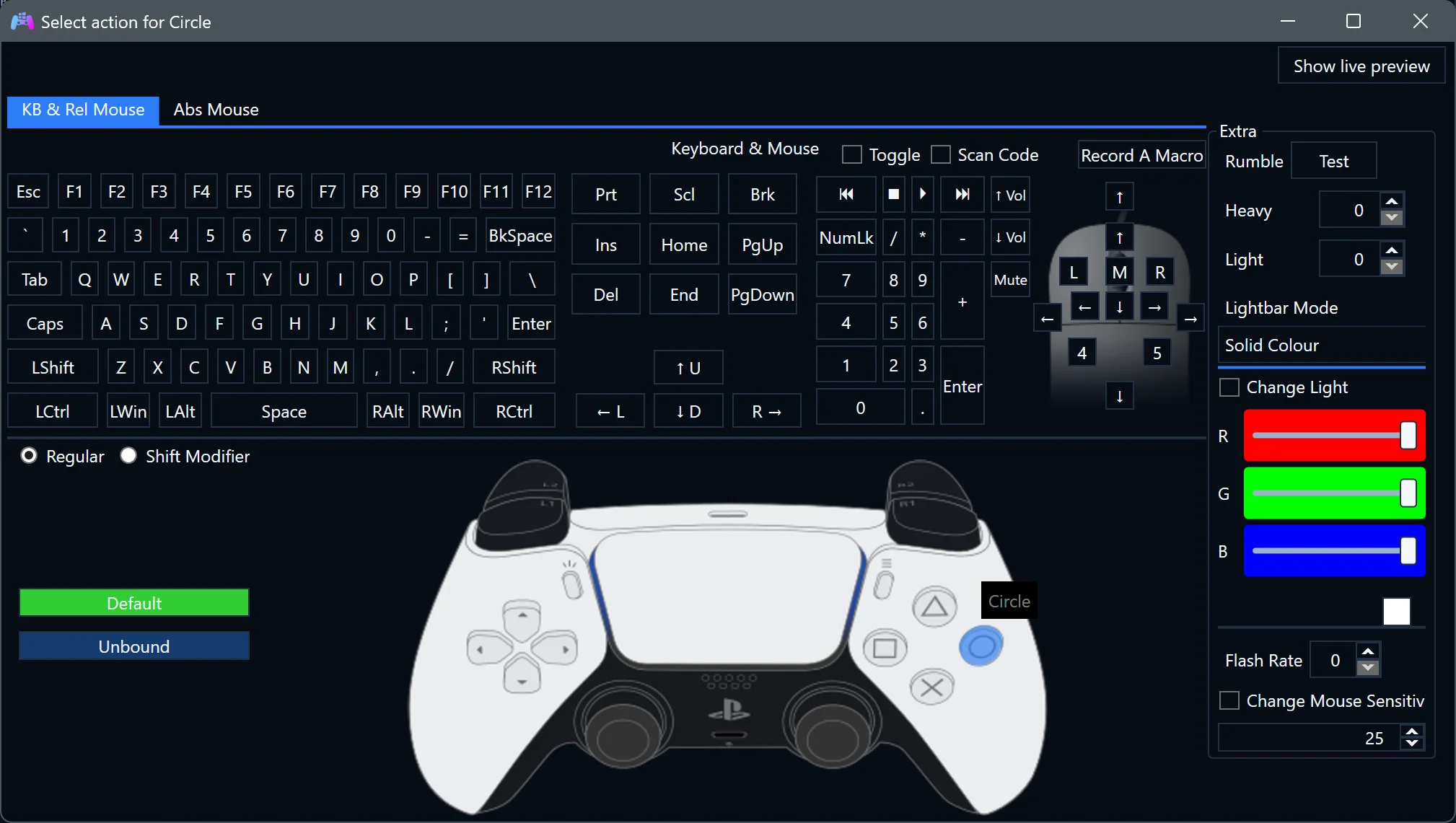
Select a mapped control to open the remapping dialog and choose its action.
Save to keep your edits. Back to Profiles cancels editing. Test one change at a time, especially dead zones, gyro sensitivity and trigger effects. Trigger Lab effects override game effects on the triggers where they are enabled. Audio Haptics is separate from game-authored native DualSense haptics.
Audio Haptics
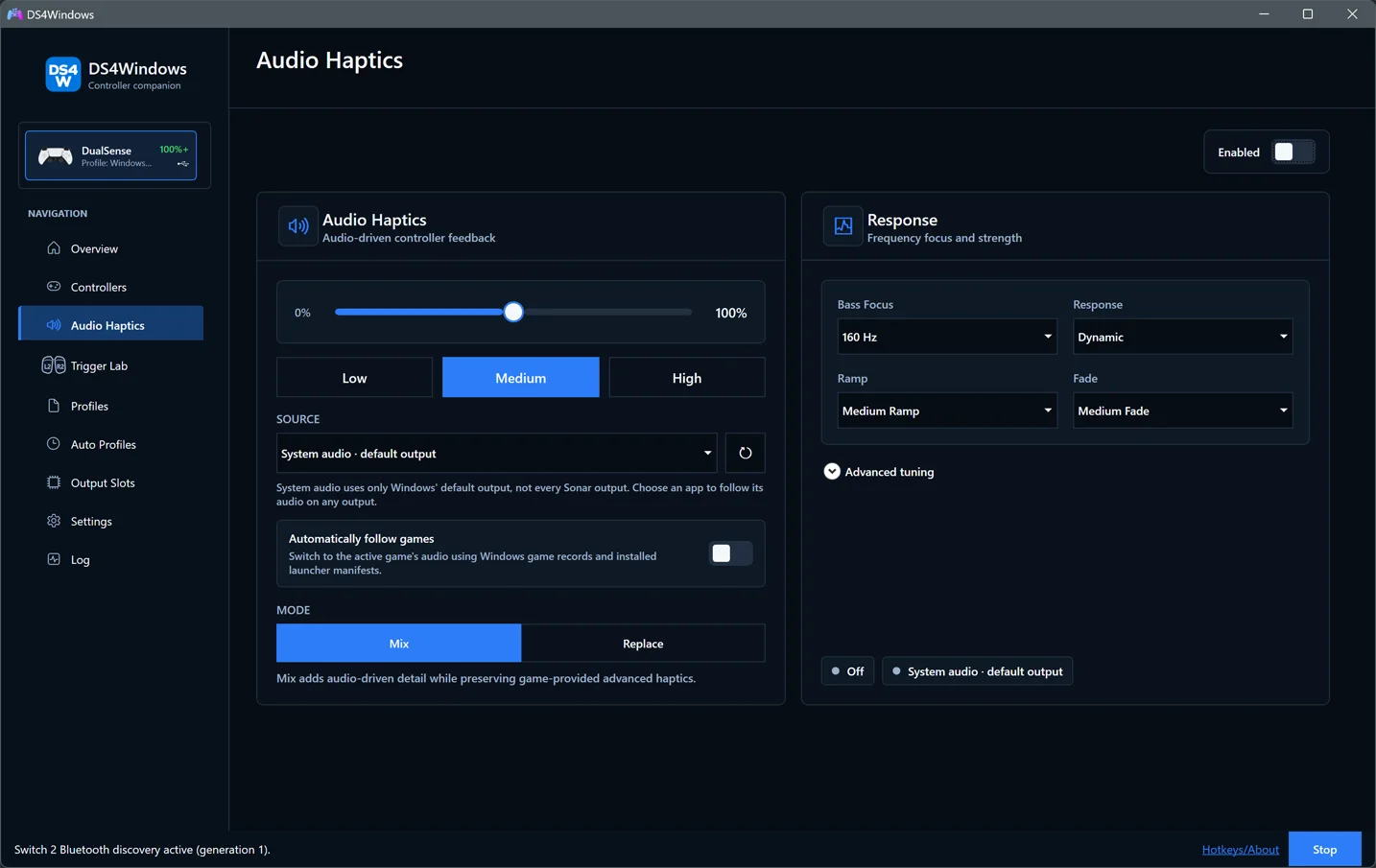
Audio Haptics creates feedback from sound; it is separate from native, game-authored haptics. Use it on the main page for the selected controller, or in the editor for the profile you are configuring.
- Select a connected controller and enable Audio Haptics.
- Choose System audio or a running application's audio session. Refresh sessions if the application is missing, and make sure it is producing sound.
- Start with Low or Medium gain. Choose Mix to add audio-driven feedback to game haptics/rumble, or Replace to use only audio-derived feedback.
- Tune Bass Focus, Response, Ramp and Fade while listening to a repeatable section of sound. Increase strength gradually.
- In the editor, use Apply/Save to keep the profile configuration. Main-page changes are live profile changes; resolve any unsaved-change notice on Overview.
System audio uses Windows' default output, not every output from an audio router such as Sonar. App capture follows the selected app on its output. Automatically follow games switches to recognized games using Windows game records and installed launcher manifests; the selected app remains the fallback. It does not guarantee recognition of every game or launcher.
Play app through controller also streams the captured app to the controller speaker/AUX headset on supported hardware. Headset only keeps it off the built-in speaker. This overrides the Advanced audio source while enabled; choosing another source there releases the override. See controller audio routing.
| Response control | Effect |
|---|---|
| Bass Focus | Choose the low-frequency region that contributes vibration |
| Response | Set how strongly peaks affect the feedback |
| Ramp | Control how quickly feedback rises |
| Fade | Control how quickly feedback falls after the sound stops |
For finer control, expand Advanced tuning and enable Use custom frequency filters. This replaces Bass Focus for audio-derived vibration; leave it off to keep the existing response. The settings are saved per profile:
- Low-pass (40-1400 Hz): lower values favour bass and reduce higher-frequency detail. Start around 100-160 Hz if dialogue causes too much vibration.
- High-pass (0-200 Hz): removes very low-frequency rumble. Set 0 Hz to disable it. The maximum stays at least 10 Hz below the low-pass setting.
- Use the existing intensity control for strength. Increase it gradually.
Filters affect audio-derived haptics, not audible audio or game-authored native haptics. Voices, music and effects share frequencies, so these controls cannot fully isolate dialogue. Compare a repeatable dialogue scene with an action scene and adjust for each game. Disable custom filters to return to Bass Focus.
If feedback is absent, first verify the capture source, enable state and physical controller. Test native feedback with Audio Haptics disabled so the two paths are not confused. See compatibility for limitations.
Trigger Lab
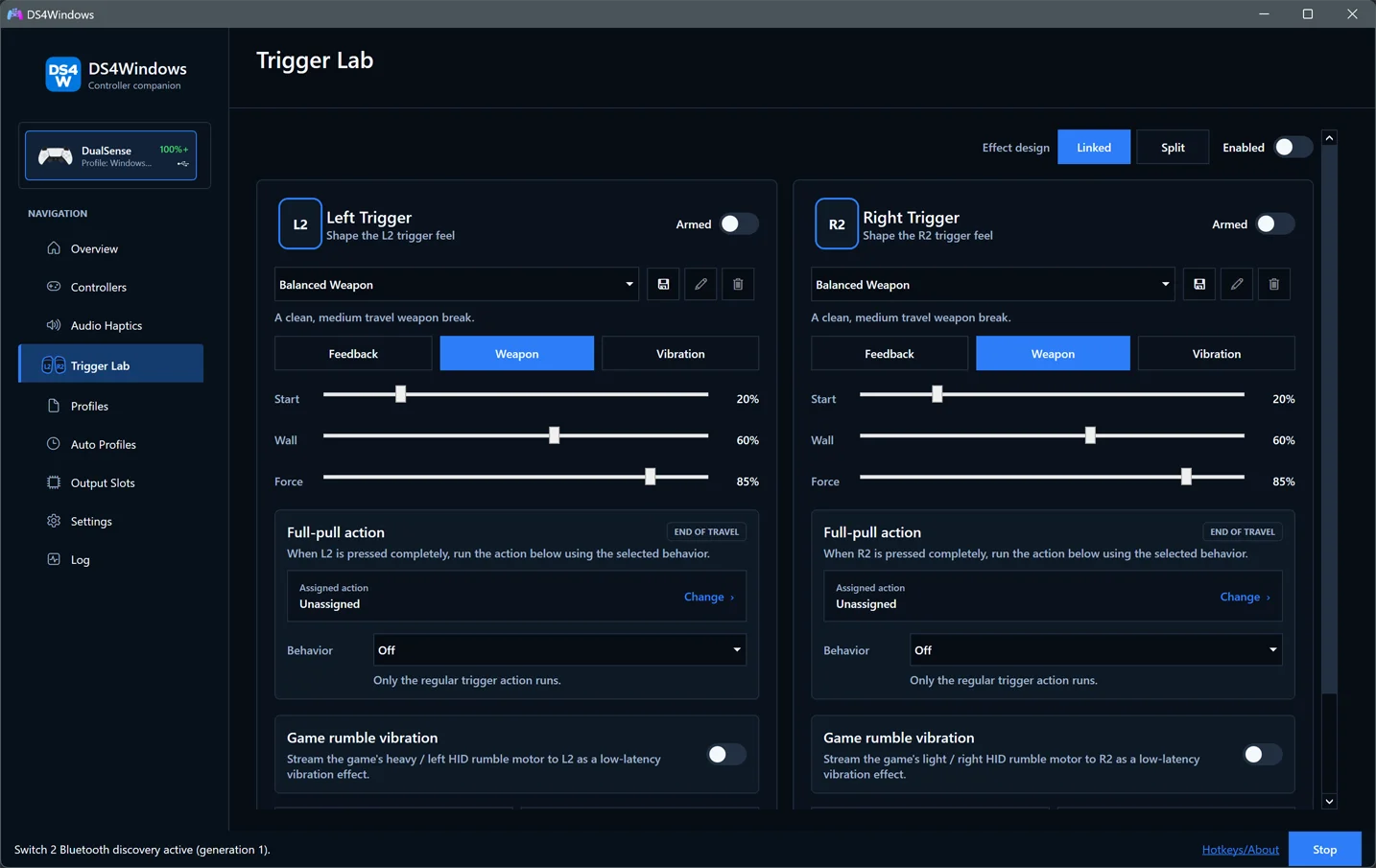
Trigger Lab designs persistent adaptive-trigger effects for physical DualSense/Edge controllers. Choose a connected controller on the main page, or configure the effect in a profile's Trigger Lab tab.
- Choose Linked for matching effects on both sides or Split to edit L2/R2 independently. Select an effect preset as a starting point.
- Choose Feedback, Weapon or Vibration, then adjust Start, Wall and Force as applicable to that mode. Begin with low force.
- Use Preview L2/R2 to feel a temporary preview. Use Reset L2/R2 to reset that side's Lab configuration; previewing alone does not save an effect.
- Enable the intended side(s) and the master Enabled toggle. A side marked Armed is selected but the master override is not active.
- Use Save new trigger profile to name a custom effect preset; custom presets can also be renamed or deleted. In the editor, Apply/Save writes the containing DS4Windows profile. A named trigger preset is not a separate controller profile.
Disable the master toggle or the relevant side to return that trigger to incoming game effects. Lab effects take priority over native game and DSX mod effects on that trigger; the other trigger can remain game-controlled.
Full-pull action assigns a second action at the end of travel. Choose how it combines with the regular trigger action: Off, Add, Replace, Hair trigger or a Hip fire mode with a delay. This is a mapping feature; it is distinct from the physical resistance effect. Game rumble vibration can translate the game's heavy/light rumble motor into L2/R2 vibration. Test each feature separately before combining them, and check Special Actions protection notices for conflicts.
Auto Profiles
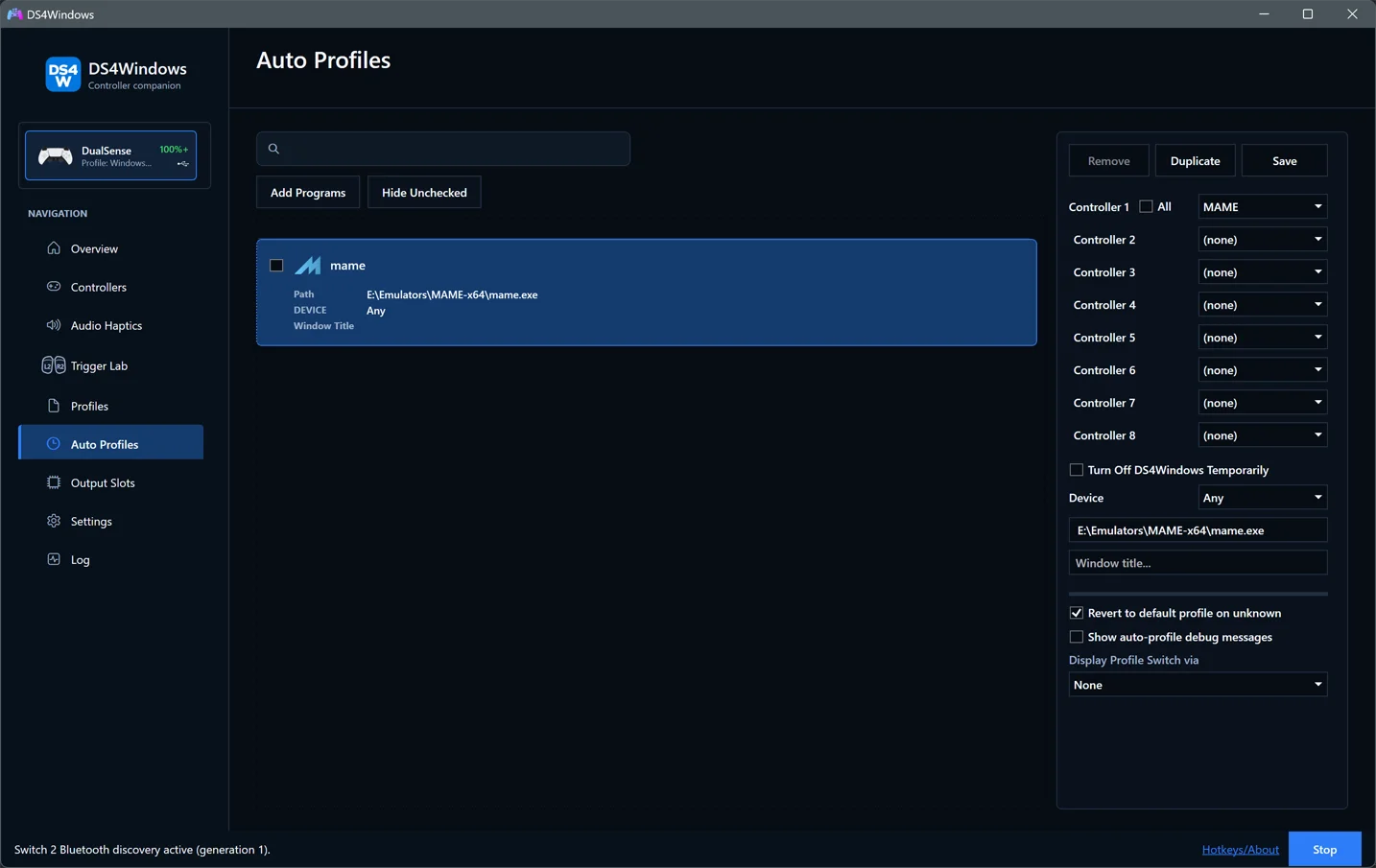
Auto Profiles selects saved profiles when the matching application/window is active. First verify the intended profile works when selected manually.
For example, to use a gyro profile only in one game:
- Create and save that profile on Profiles.
- On Auto Profiles, use Add Programs to browse for the game's executable or add it from the available program sources. A launcher and the game itself may be different executables.
- Select the entry, choose the profile for the intended controller slot (or All when that is intended), leave Rule enabled checked, and select Save rule. Newly discovered programs show Not saved until you save them. Saved rules show Enabled or Disabled.
- Launch/focus the game and confirm the active profile on Controllers.
For a window-title rule, use Add Programs → Add Window Title Rule, enter the intended title condition and select/save its profiles. Use the title field to narrow an application rule where needed. Search filters the displayed entries; it does not change their matching configuration.
The Device choice restricts a rule to a controller family. For a matching
application/window, a matching device-specific rule takes priority over an Any
rule; the first matching rule within each group is used. Use the entry's context
menu or the visible Move up/Move down buttons to order overlapping rules.
Clear the search first so the full priority order is visible. A (none) profile
does not request a profile switch for that controller.
To pause a rule without losing its settings, clear Rule enabled and select Save rule. Delete removes the selected program and its saved rule; deleting a saved rule asks for confirmation and keeps the controller profiles themselves. Clear unsaved programs removes discoveries that have not been saved, keeping saved rules. Editing a saved rule takes effect when you select Save rule. Duplicate creates an unsaved copy for you to edit and save; it does not save changes to the original rule.
Start Menu, Steam and directory discovery show progress and a Cancel button while keeping the page visible. Cancel leaves existing rules intact and adds no partial results. Completion shows how many programs were added, already listed or skipped. Start Menu discovery imports executable shortcut targets; for an app without one, use Browse for Other Programs or Add Window Title Rule.
Revert to default profile on unknown determines whether to return to the default when no known rule matches. Leave the temporary-stop option off unless the application should intentionally stop DS4Windows mapping. Review overlapping rules and test one saved rule first if switching is unexpected. Optional Auto Profiles debug messages help identify a match; disable them after diagnosis.
Output Slots
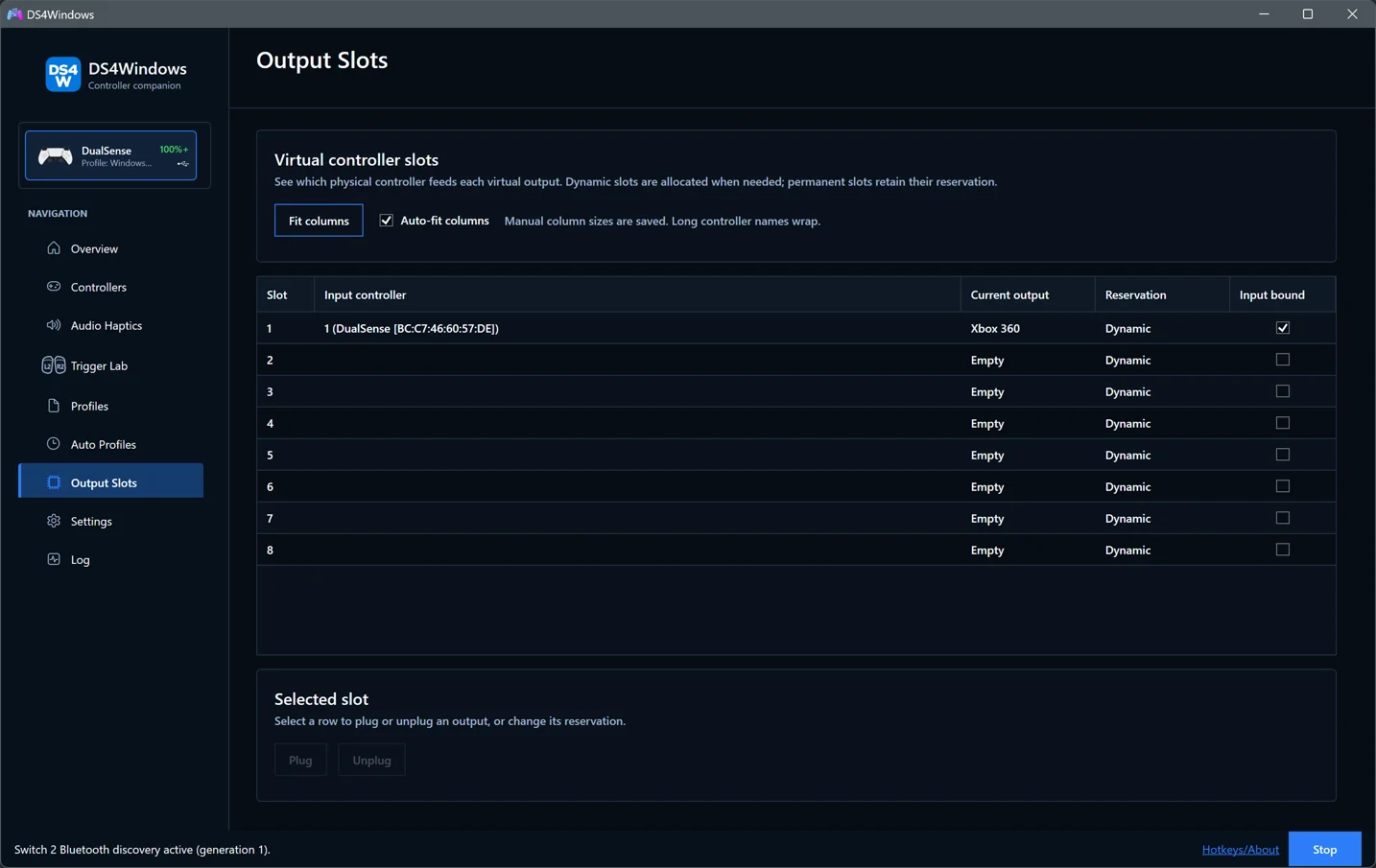
Use this page to see which physical controller feeds each virtual output slot. Slot is DS4Windows' output slot number, not a game-reported XInput index. Current output shows the virtual controller type. Reservation shows Dynamic allocation or the type reserved permanently. Input bound means a physical controller is feeding the slot.
Auto-fit columns uses the available window width. Fit columns restores that layout. Dragging a column edge switches to manual sizing and saves the widths with your application settings, including across restarts. Turning Auto-fit off restores your last manual layout. Long names wrap; narrower windows provide horizontal scrolling and full-text tooltips rather than hiding details. Select a row to access Plug, Unplug and the existing reservation controls. A failed disconnect can leave an output registered for retry; use the log to diagnose it instead of repeatedly adding more outputs.
Settings
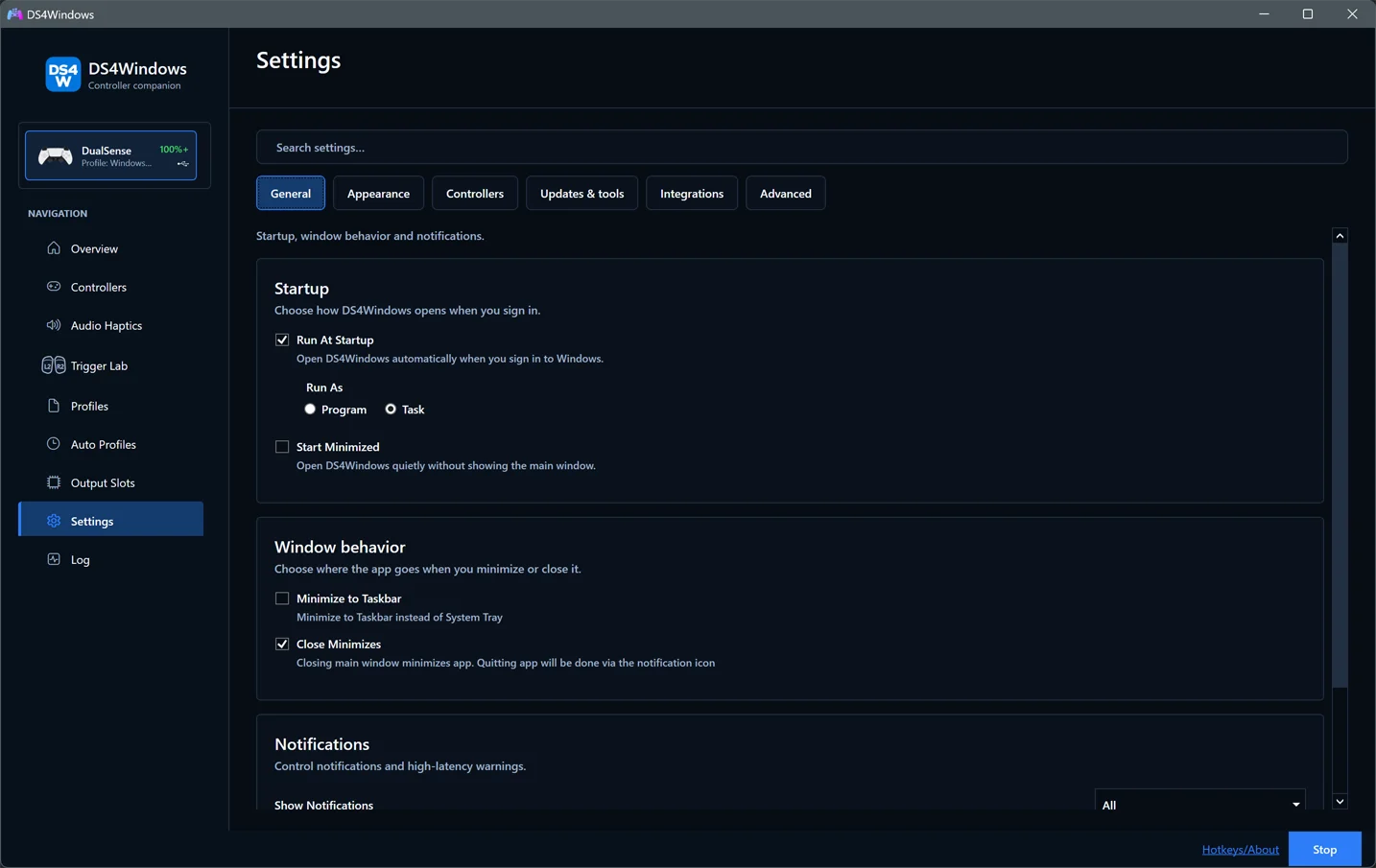
The image shows the General section of the redesigned Settings page. The checked options are illustrative; your saved preferences may differ.
Settings fills the available window width and groups related options into cards.
| Section | What you can change |
|---|---|
| General | Startup, window behavior, notifications and latency warnings |
| Appearance | App theme, sidebar icon, tray icon and language |
| Controllers | VIIPER setup, HidHide, Steam Input recovery, device options and swipe profiles; optional Nintendo pairing |
| Updates & tools | Update checks, profile folder, diagnostic utilities, verbose logging and optional profile-editor timing logs (off by default) |
| Integrations | DSX game mods, UDP motion output and OSC control/monitoring |
| Advanced | Custom Steam folder, executable name, process priority and absolute mouse display |
In Settings > Appearance > Theme and tray icon, choose Follow Windows, Light, Dark, Graphite, Paper, Midnight or High contrast. The theme menu shows a small palette preview. Follow Windows uses your Windows app theme. Windows contrast themes take priority over the selected app theme and use your system colours.
Choose the theme's accent, your Windows accent, one of the colour presets, or Custom… to pick a colour. The saved colour is adjusted for readable contrast where necessary. Windows contrast colours take priority over custom accents. Theme and accent changes apply immediately and are saved with app settings.
In Appearance > Sidebar icon, choose Blue Tile, Midnight Circle, Blue Frame, Controller or Angular Badge using the image previews. Blue Tile is first and is the default for new and existing settings. The choice applies immediately and is saved with your app settings. The sidebar icon keeps its 44 × 44 size as Windows display scaling changes. Use the Hue slider to shift its colours from 0 to 360 degrees. The sidebar and dropdown previews update as you drag, and the hue is saved with your app settings. Reset returns to the original artwork; transparency and neutral colours are preserved.
Search settings to find matching groups across all sections. Use Ctrl+F to focus the search; Clear, or Escape while typing, returns to the selected section. Searching keeps your edits. The app remembers the last selected section when you close it normally.
Open Settings > Updates & tools > Changelog to read release history in the app. The reader follows your theme, separates release headings, and fits images to the reading area as you resize the window. If notes cannot be loaded, use Try again or View releases on GitHub.
See languages and translation coverage for available packs and how to report wording improvements.
Language changes show a restart reminder. A custom executable name shows a re-launch reminder with the filename to open. Theme and tray icon changes apply immediately.
Use Swipe profiles to limit profile cycling. For double input, configure HidHide and check overlapping Steam Input mappings. Run at Startup and Start Minimized are separate choices.
Battery alerts
Open Settings > Controllers > Battery alerts. Automatic low-battery and fully-charged alerts are off by default. Enable the alerts you want, choose a low-battery threshold, and expand Configure voices, sounds and vibration.
- Choose an installed Windows voice, speech speed and alert volume. Manage Windows voices opens Windows speech settings; refresh the list after adding a voice. If a saved voice is missing, the system default is used.
- Select the default Windows audio device or a specific headset/speaker. A missing specifically selected device produces an error instead of silently playing through another device.
- Controller speaker uses the matching physical USB DualSense speaker directly; Bluetooth uses the matching emulated controller's existing native speaker route. Enable Stream audio to controller and turn off Headset only in Profile Editor > Advanced > Audio. For Bluetooth, use native game audio as the source. Profile speaker volume, controller mute and Windows endpoint volume still apply. This option does not switch on a disabled controller audio route.
- Configure Low battery, Fully charged and On-demand battery check independently: speech, a custom sound, sound followed by speech, or no audio. Each can also use an adjustable vibration pattern (strength, pulse length and count, with 150 ms gaps). New vibration pulses skip an already busy rumble lane; releasing an alert preserves more recent game feedback.
- Import sound accepts WAV, MP3 and AIFF. Files are validated, decoded and
saved as local PCM audio in the settings folder's
BatteryAlertSoundsdirectory. Moving the original file does not break the alert. Short clips of 1-3 seconds are recommended; the import limits are 30 seconds and 64 MB. - Use Preview and Stop preview to check each alert. Ordinary audio previews work without a controller; vibration and controller-speaker previews require the selected physical controller.
For a button-triggered check, add or edit a Check Battery Special Action, select Use battery alert audio and vibration, and save its button combination. Existing tray-notification and lightbar actions continue working unchanged.
For controllers that report only battery bands, low alerts use the reported low band; the percentage threshold applies to controllers with percentage reports.
Low-battery warnings can optionally repeat every 30 seconds, 1, 2, 5 or 10 minutes. Repeat interval: Off is the default and keeps the existing single warning. Choose Total warnings: 1–10, including the first alert, or Until charging for ongoing reminders. Repeats use the same low-battery speech, sound and vibration settings. They stop when charging begins, the battery rises above the low threshold, the controller disconnects or low-battery alerts are disabled. A reconnect does not restart the previous reminder sequence. Previews and on-demand checks do not count towards the automatic warning total.
Alerts wait for three stable observations, use recovery thresholds and cooldowns, and retain their state through profile changes and reconnects during the app session. DS3, DS4 and DualSense completion reports can trigger the full alert; a high percentage alone cannot. Controllers reporting only battery bands are announced as low, medium or high. Unknown readings are not treated as an empty battery. If Audio Haptics captures the selected playback device, the announcement is part of that captured system audio too.
Back up BatteryAlertSounds along with Profiles.xml when moving your settings.
Speech uses installed Windows voices locally, without a cloud service.
Log and diagnostics
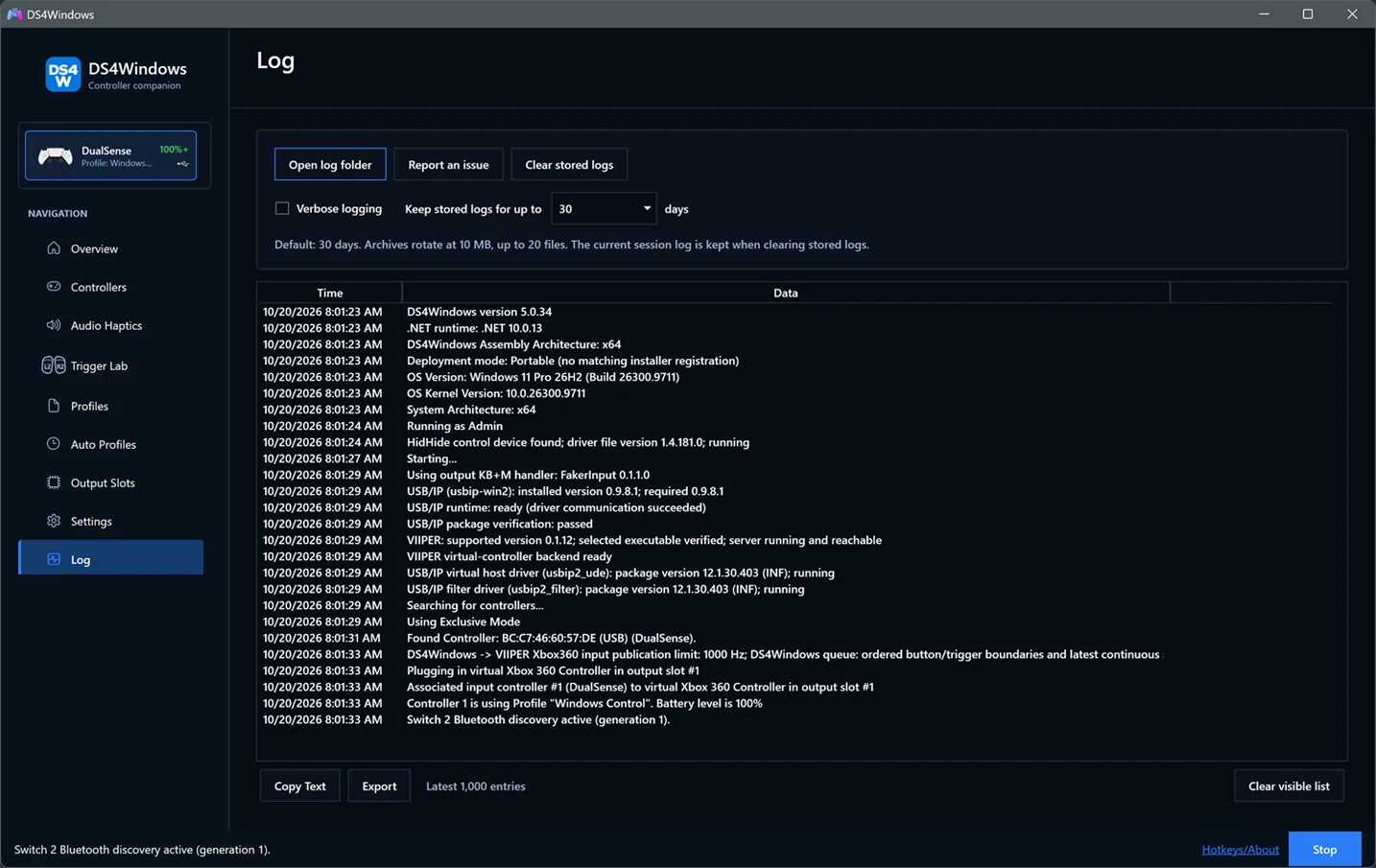
The Log page shows startup, controller, profile and backend events, including
installed/portable deployment mode, USB/IP status and detected driver versions.
Copy Text copies the retained latest 1,000 entries with timestamps, including
entries outside the current viewport. Export writes the same snapshot to a
text file. Clear visible list clears only this view; saved files remain.
Use Open log folder to find the active session and older saved logs. The
current run writes to ds4windows_log.txt; the previous session is archived at
startup. The startup header stays with the rest of the session, including after
changing retention. Daily or 10 MB rotation can still split a long session.
startup_failure.log is a separate report written when an unhandled error occurs.
If startup has scrolled beyond the 1,000-entry limit, attach the saved log as well.
Verbose logging is available directly on the Log page and stays in sync with the existing Settings control. Enable it, restart DS4Windows to include startup diagnostics, reproduce the problem, then turn it off after collecting the log. Report an issue opens this fork's GitHub issue form in your browser; it does not upload a log or create a report automatically.
VIIPER debug logging captures the backend's own diagnostic text separately
from DS4Windows verbose logging. Enable it, fully exit both applications, then
reopen DS4Windows normally. Use Capture instructions for the steps and
Open log folder to find viiper-debug.log. Turn it off and restart both
after testing. See the VIIPER capture guide.
Keep stored logs for up to offers 1, 7, 14, 30 or 90 days; the default is 30 days. The preference persists across restarts. Archives also rotate daily or at 10 MB and are capped at 20 files, so busy sessions may retain less history. Cleanup runs after saved settings load and when you change retention; normal archive rotation also enforces the limits.
Clear stored logs asks before deleting DS4Windows archives and saved startup failure reports in the active Logs folder. It keeps the current session log, the visible list, profiles and unrelated files. Locked or inaccessible files are reported so you can try again later. Retention never deletes the active session log or follows subfolders/links. Copy or export anything you need before clearing.
Include app version, Windows build, controller model, connection and output type when reporting an issue. Startup readiness and driver versions help distinguish a setup problem from a game/profile problem; they do not prove that a game's feedback features work. Review logs for personal information before sharing.
Under Settings → Updates & tools, verbose logging adds diagnostic detail. Profile editor timing logs is a separate opt-in setting, off by default, for diagnosing editor opening phases. Enable only the information needed to reproduce an issue, collect it, then turn it off. Auto Profiles has its own debug message option. See Troubleshooting for the first checks.
XInput controller test
Open Settings > Updates & tools > XInputChecker to show the built-in XInput controller test. It replaces the former external-program launcher; no separate XInputChecker download is needed. Pressing the button again brings the same window forward.
The four cards show Windows XInput slots 1-4, their connection status, pressed buttons, trigger values (0-255) and signed raw stick values (-32768 to 32767). Move each control to see which slot responds. These are Windows XInput slots, not DS4Windows controller/output slot numbers. A physical Xbox controller and an emulated Xbox output can each occupy a slot.
Virtual DS4 and DualSense outputs do not appear here; use a compatible PlayStation tester for them. The test is read-only: it does not assign slots, create virtual controllers, trigger rumble or measure latency. If Windows XInput is unavailable, the window explains the error; close and reopen it to retry. Close the window when finished.
Hotkeys and About
Open Hotkeys/About at the bottom of the main window. The About page shows this fork's version and links to the website, setup guide, source and issue tracker. Hotkeys groups connection shortcuts, touchpad gestures and mapping terms, with notes about the settings they require.
Shortcuts depend on the controller and active profile. For example, PS + Options requires the Disconnect Controller Special Action to be assigned and enabled. Holding PS to switch off a supported PlayStation controller is a hardware shortcut; see PlayStation's controller help.
Credits acknowledges the community and supporting projects. License includes the full bundled GNU GPL v3 text, and Extras links to component projects and third-party notices. All pages scroll within the window; press Escape or choose Close to return to DS4Windows.
Native feedback and feature limits
See Controller audio and game feedback for setup and Compatibility for controller/output/connection limits.
For native DualSense feedback, the game must support it, the profile must use compatible output, and overlapping Steam Input remapping must be disabled for that game. Controller audio/speaker support is needed for advanced haptics. Supported feedback differs between controller models and USB/Bluetooth.
Nintendo rumble translation does not add adaptive-trigger hardware. Original Joy-Cons do not have Joy-Con 2 optical mouse sensors. See the linked feature guides before assuming a virtual output can reproduce every physical feature.